You're juggling three clients, a product demo, and trying to capture every detail from your team's weekly Zoom call. Sound familiar?
Most professionals solve this with frantic typing or hoping someone else takes notes. But there's a smarter approach: AI meeting recording that captures every word, identifies speakers, and generates actionable summaries automatically.
The trick is choosing the right method. Some tools flood your meetings with bots. Others miss half the conversation. The best solutions work invisibly while delivering transcripts you can actually use.
What Is an AI Notetaker for Zoom?
An AI notetaker for Zoom automatically records, transcribes, and summarizes your meetings using artificial intelligence. Instead of manual note-taking, these tools capture spoken words, identify different speakers, and convert everything into searchable text with timestamps.
Three Recording Methods: Bot vs. Bot-Free Approaches
Not all AI meeting tools work the same way. You have three main options, each with distinct trade-offs.
Meeting Bots (Most Common)
Tools like Otter.ai and Fireflies send a virtual participant to your meeting. This bot appears in your participant list as "Assistant" or similar, records the audio, then processes it afterward.
Pros:
- Works with any Zoom plan
- Captures multi-speaker conversations clearly
- Handles scheduled meetings automatically
Cons:
- Visible to all participants (can feel intrusive)
- Some clients or executives prefer bot-free meetings
- Requires meeting permission from hosts
Screen Recording with Audio Capture
This approach records your local screen and system audio without any external bot joining the call.
I tested this method extensively last month across 15 client calls. The transcription quality matches bot-based tools, but you maintain complete privacy control.
Scriptivox excels here because you can upload your screen recording and get word-level timestamps within minutes. Upload a 90-minute recording, select auto-detect for language, and receive a fully timestamped transcript with speaker identification.
Pros:
- No visible bot in the meeting
- Works for any online platform (Zoom, Teams, Google Meet)
- You control the recording entirely
Cons:
- Requires manual upload after meetings
- Uses local storage during recording
Cloud Recording Integration
Zoom's native transcription processes cloud recordings after meetings end. You record to Zoom's cloud, then access transcripts later.
Pros:
- Built into Zoom platform
- No third-party tools required
Cons:
- Requires Business plan or higher ($149.90/year minimum)
- English-only transcription
- No real-time processing
- Basic formatting with limited speaker identification
Step-by-Step: Setting Up Bot-Free Meeting Recording
Here's how I set up reliable meeting transcription without bots disrupting the conversation:
Before Your Meeting
-
Test your recording setup: Run a 2-minute test call to verify audio quality. Poor input audio ruins transcription accuracy regardless of the AI model.
-
Configure screen recording: Use built-in tools (macOS Screen Recording, Windows Game Bar) or dedicated software like OBS. Set audio source to "System Audio" to capture the meeting sound.
-
Prepare your workspace: Close unnecessary applications. Screen recording can be resource-intensive during long meetings.
During Your Meeting
-
Start recording before joining: Begin screen recording, then join your Zoom call. This captures the full conversation without missing opening remarks.
-
Position your Zoom window: Keep the participant list visible if possible. This helps with speaker identification during transcription.
-
Monitor storage space: A 1-hour meeting typically generates 500MB-1GB of video data.
After Your Meeting
-
Stop and save recording: Most tools auto-save to your designated folder.
-
Upload for transcription: I typically upload to Scriptivox immediately after meetings. A 60-minute recording processes in about 3-4 minutes with speaker identification enabled.
-
Review and edit: Rename speakers from "Speaker 1" and "Speaker 2" to actual names. Add paragraph breaks for readability.
-
Export in your preferred format: Generate meeting minutes as PDF, action items as text, or subtitles as SRT for video sharing.
AI Notetaker Comparison: What Works Best
After testing six major platforms over three months, here's what I discovered:
Otter.ai offers the smoothest bot-based experience. Their Zoom integration works reliably, and real-time transcription helps during meetings. However, speaker identification struggles with similar voices, and the bot presence can disrupt sensitive client calls.
Fireflies provides excellent meeting summaries with customizable templates. Their action item extraction outperforms most competitors. The downside: their bot tends to glitch during large meetings (10+ participants) in my testing.
Descript combines transcription with video editing tools. Perfect for creating meeting highlights or training content afterward. But their transcription accuracy lags behind specialized tools, especially with technical terminology.
Zoom's native transcription works adequately for basic needs but lacks the AI-powered insights that make meeting notes truly useful. You get raw text without summaries, action items, or smart formatting.
Scriptivox excels as a bot-free solution. Upload any meeting recording and receive word-level timestamps with 100-language support. The AI chat feature lets you ask questions about your transcript: "What were the three main concerns about the budget?" or "List all action items assigned to Sarah."
For teams prioritizing privacy and flexibility, the upload-based approach often works better than real-time bots.
Advanced Features That Actually Matter

Beyond basic transcription, these features separate useful tools from basic speech-to-text converters:
Intelligent Speaker Identification
Good tools distinguish between voices automatically. Great tools let you specify exactly how many speakers to expect (2-10 people) rather than guessing. This prevents the common problem of splitting single speakers into multiple "Speaker 1" and "Speaker 3" labels.
Custom AI Prompts
The most productive teams create templates for different meeting types. Sales calls need deal status and next steps. Design reviews need feedback categorization and revision requests. Engineering standups need blocker identification and timeline updates.
Word-Level Timestamps
Sentence-level timestamps tell you roughly when topics changed. Word-level timestamps let you jump to exact moments: "Find when David mentioned the Q4 deadline" jumps precisely to that phrase, not the general paragraph.
Multi-Language Support
Global teams need more than English-only transcription. Auto-detection works well for single-language meetings, but bilingual conversations (common in international companies) require specialized handling.
Meeting Recording Best Practices

After transcribing over 200 hours of meetings, these practices consistently improve results:
Audio quality matters more than AI sophistication. A clear recording with a basic transcription model beats a poor recording with advanced AI. Use headphones with good microphones. Ask participants to mute when not speaking.
Structure your meetings for better transcripts. State names when switching speakers: "Thanks Sarah, now let me hand this over to Mike for the budget update." This helps AI models track speaker changes accurately.
Review transcripts within 24 hours. Memory fades quickly. Correct speaker names and add context while the conversation remains fresh in your mind.
Tag and organize systematically. Create consistent naming conventions: "Client-ProjectName-Date" or "Team-Department-Topic." Future you will appreciate the organization.
AI Notetaker Tool Comparison
| Tool | Best For | Pros | Cons |
|---|---|---|---|
| Otter.ai | Bot-based experience | Smooth Zoom integration, real-time transcription | Speaker ID struggles, visible bot presence |
| Fireflies | Meeting summaries | Excellent summaries, action item extraction | Glitches with large meetings |
| Descript | Video editing | Combines transcription with editing tools | Lower transcription accuracy |
| Zoom Native | Basic needs | Built into platform, no third-party tools | English-only, basic formatting |
| Scriptivox | Bot-free privacy | 100-language support, AI chat features | Manual upload required |
Frequently Asked Questions
About the author
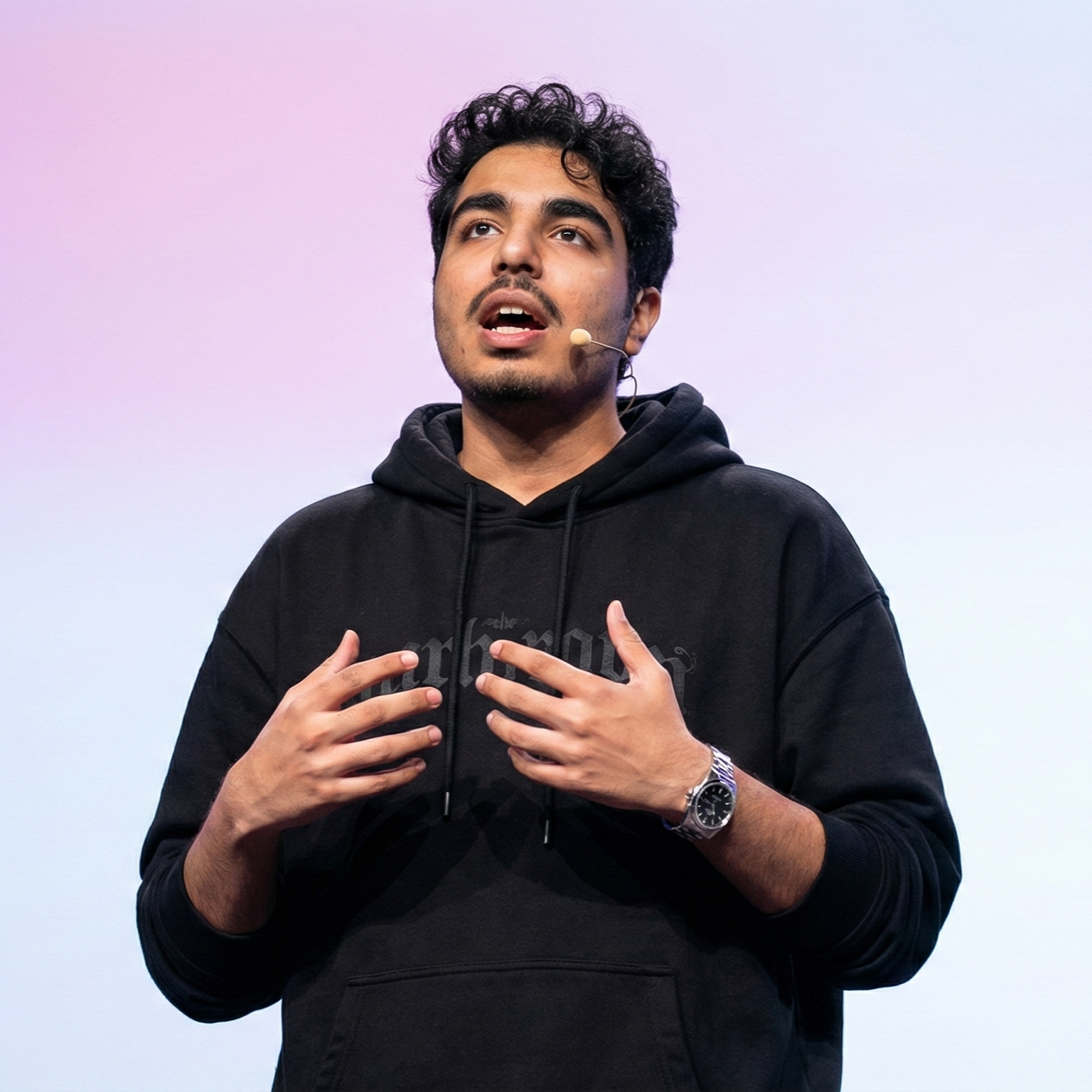
Abhishek co-founded Scriptivox and built its early optimization and scalability layer — the part that turns a working transcription tool into one that holds up under real load. Today he leads growth and marketing at Scriptivox. He writes about transcription accuracy, multi-language coverage, and what it takes to build an AI transcription product that stays fast and reliable as it scales.