A university uploads 500 hours of lecture content weekly. Without captions, 12% of their students can't access half the material they're paying for. The fix isn't complicated, but it requires a system.
Video accessibility means making educational content usable by students with hearing loss, vision impairments, motor disabilities, or processing differences. It's also legally required under ADA, Section 504, and WCAG 2.1 guidelines. Non-compliance can trigger federal complaints, funding loss, and lawsuits reaching $150,000 per violation.
This checklist walks through the specific steps to make your video content accessible, plus workflows that scale across an entire institution.
What Is Video Accessibility?
Video accessibility is the practice of adding captions, transcripts, audio descriptions, and keyboard navigation to video content so students with disabilities can access the same information as their peers. Unlike basic subtitles for language translation, accessibility features assume some viewers cannot hear audio, see visuals, or navigate with a mouse.
Essential Accessibility Components
Closed Captions vs Auto-Generated Text
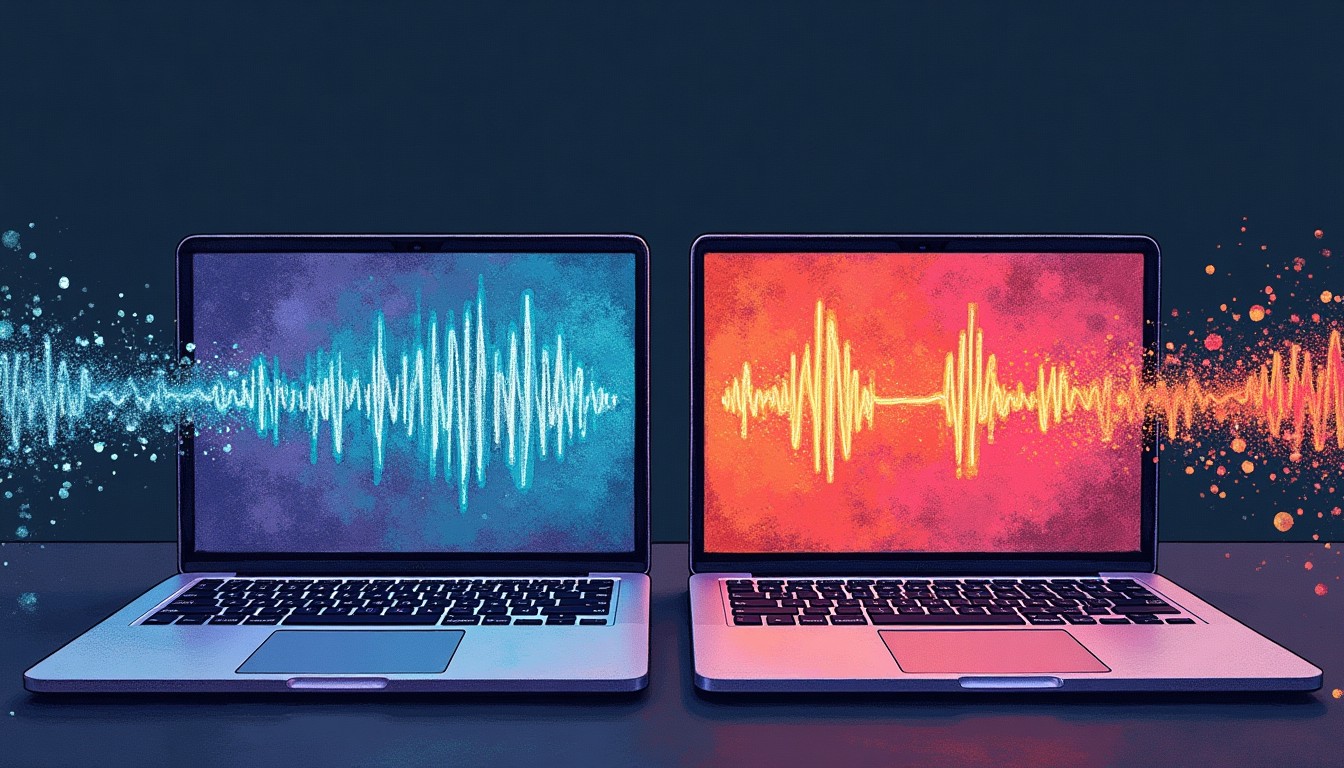
Closed captions display spoken dialogue, speaker identification, and sound effects with precise timing. Auto-generated captions from platforms like YouTube or Zoom miss technical terminology, speaker changes, and non-speech audio consistently enough to make content unusable.
I've seen biochemistry lectures where auto-captions rendered "mitochondria" as "mighty-con-dria" and "enzyme kinetics" as "enzyme connects." For a hearing-impaired student, this isn't just inconvenient. It's exclusionary.
Professional transcription services deliver 99%+ accuracy on educational content. When I upload a 90-minute lecture to Scriptivox, speaker identification separates the professor from student questions automatically, and technical terms appear correctly even in specialized fields like organic chemistry or constitutional law.
Interactive Transcripts
Standard transcripts provide searchable text versions of video audio. Interactive transcripts link each word to its timestamp, letting students click any phrase to jump directly to that moment in the video.
This transforms how students review material. Instead of scrubbing through a 2-hour recording to find one concept, they search "oxidative phosphorylation" in the transcript and land on the exact explanation.
Audio Descriptions for Visual Content
Audio descriptions narrate visual elements that aren't captured in dialogue: charts, diagrams, gestures, equations written on whiteboards, or lab demonstrations. Students with vision impairments rely on these descriptions to understand content that's primarily visual.
For a chemistry video showing molecular structures, the audio description might say: "The instructor draws a benzene ring on the whiteboard. Six carbon atoms form a hexagon with alternating double bonds."
Legal Requirements and Compliance Standards
Educational institutions operate under multiple accessibility laws that overlap but aren't identical in scope.
The Americans with Disabilities Act requires equal access to programs and services. Courts increasingly interpret this to include digital content, making inaccessible videos a clear ADA violation.
Section 504 of the Rehabilitation Act prohibits discrimination in federally funded programs. As of 2024, the Section 504 Final Rule adds enforceable technical standards for web accessibility.
WCAG 2.1 AA guidelines serve as the technical benchmark. Key requirements include:
- Captions for all prerecorded audio content
- Transcripts available as downloadable files
- Audio descriptions when visual content conveys information
- Keyboard-accessible video player controls
- Color contrast ratios of at least 4.5:1 for text elements
Violations carry financial penalties up to $75,000 for first offenses and $150,000 for repeat violations.
Implementation Workflow
Step 1: Generate Professional Captions
Upload video files to a professional transcription service rather than relying on platform auto-generation. Accuracy matters more than speed for educational content.
For recorded lectures, I upload MP4 files directly. The platform identifies when the professor speaks versus student questions, formats speaker labels clearly, and captures technical vocabulary that auto-captions miss entirely.
Download captions as SRT files for maximum compatibility across video platforms and learning management systems.
Step 2: Create Downloadable Transcripts
Transcripts should be formatted documents (PDF or DOCX) that students can download, print, or import into accessibility software. Include timestamps every few sentences to help students reference specific moments.
A well-formatted transcript includes:
- Speaker identification for multi-person videos
- Paragraph breaks at natural topic transitions
- Timestamps every 30-60 seconds
- Descriptions of significant visual content
When generating transcripts, word-level timestamps allow for more precise navigation than sentence-level timing.
Step 3: Add Audio Descriptions
Review your video for visual elements that convey information not available through audio alone. This includes:
- Charts, graphs, and data visualizations
- Mathematical equations or formulas
- Demonstration procedures
- Slides with bullet points or diagrams
- Gestures that emphasize key points
Audio descriptions can be recorded as a separate audio track or integrated into the main recording during post-production.
Step 4: Verify Player Accessibility
Ensure students can control video playback without a mouse. Test keyboard navigation:
- Tab key moves between controls
- Space bar plays/pauses
- Arrow keys adjust volume and seek position
- Enter key activates focused controls
Most modern video platforms (YouTube, Vimeo, Kaltura) support keyboard navigation by default. Custom players may require additional configuration.
Step 5: Audit Supporting Materials
Accessibility extends beyond the video file itself. Related documents need proper formatting:
- PDFs must be tagged for screen reader navigation
- Images require descriptive alt text
- PowerPoint files need heading hierarchies
- Links use descriptive anchor text rather than raw URLs
Scaling Across Institutions
Individual compliance is manageable. Institutional compliance requires systematic approaches.
Standardized Workflows
Establish accessibility as a standard step in content production rather than an optional add-on. Faculty compliance improves when the process is simple and tools are pre-approved.
Create templates for transcript formatting, caption style guides, and audio description standards. The more specific your guidelines, the more consistent results across departments.
Automated Processing
For institutions producing hundreds of hours monthly, automation reduces both workload and human error. Set up workflows where uploaded videos automatically trigger transcription jobs, generate formatted transcripts, and notify faculty when files are ready for review.
Some platforms offer integration with learning management systems, so captions and transcripts appear alongside video content without manual file management.
Legacy Content Remediation
Existing video libraries represent significant compliance liability. Audit your content systematically:
- Inventory all video content by course and department
- Prioritize high-enrollment courses and frequently accessed content
- Set realistic timelines for retroactive captioning
- Track progress to demonstrate good-faith compliance efforts
Phased remediation shows legal compliance intent while managing practical constraints.
Common Implementation Mistakes
Relying exclusively on auto-generated captions. Platform algorithms struggle with technical vocabulary, multiple speakers, and audio quality variations common in educational content.
Treating captions as sufficient accessibility. Captions help hearing-impaired students but don't address visual accessibility needs. Comprehensive accessibility requires multiple accommodation types.
Ignoring supporting materials. Video accessibility means nothing if accompanying PDFs, slides, or worksheets remain inaccessible to screen readers.
Inconsistent formatting across departments. Mixed caption styles, transcript formats, and player implementations create unnecessary barriers for students navigating multiple courses.
Tools and Platform Recommendations
Professional transcription platforms like Scriptivox handle educational content better than generic auto-caption tools. Technical accuracy, speaker identification, and formatting options designed for academic use make a measurable difference in final output quality.
For video hosting, platforms like Kaltura and Panopto integrate directly with learning management systems and include accessibility features by default. YouTube works for public content but lacks the administrative controls most institutions need.
Accessibility evaluation tools like WAVE help audit video pages and surrounding web content for compliance with WCAG guidelines.
Video accessibility isn't optional for educational institutions in 2026. The legal requirements are clear, the technology exists, and students expect equal access to learning materials. The question isn't whether to implement accessibility features, but how quickly you can scale compliant workflows across your content library.
Start with high-traffic courses, establish consistent processes, and treat accessibility as a standard production step rather than an afterthought. Your students and legal counsel will thank you.
Frequently Asked Questions
About the author
Arsh co-founded Scriptivox and built the core of what it runs on: the AI models, the API, the meeting bot, and the technical infrastructure that keeps transcripts accurate at scale. He also handles customer support directly, because the people building the product should be the ones talking to the people using it. He writes about real transcription workflows for legal, research, and content teams, grounded in the systems he ships and maintains himself.