Your 3 PM hybrid meeting starts in five minutes. Remote attendees are dialing in from three time zones, half your in-person team forgot their headphones, and someone just asked about live captions for the hearing-impaired contractor joining today. Sound familiar?
Live captions in hybrid meetings aren't just an accessibility checkbox anymore. They're becoming the standard for inclusive, productive meetings where everyone can participate fully, regardless of hearing ability, language background, or connection quality.
What Are Live Captions?
Live captions are real-time text overlays that display spoken words as they're said during video calls or presentations. Unlike pre-recorded subtitles, live captions generate instantly using speech recognition technology, making meetings accessible to deaf and hard-of-hearing participants while helping everyone follow along in noisy environments or with poor audio quality.
Platform-Specific Live Caption Setup
Zoom Live Captions
Zoom offers both automated captions (powered by their AI) and human-generated captions through third-party services. The automated option works for most business meetings, while human captioners provide higher accuracy for critical presentations.
To enable Zoom's automated captions:
- Start or join a meeting
- Click "More" in the meeting controls
- Select "Automated Captions"
- Choose your language (English, Spanish, French, German, Italian, or Portuguese)
- Captions appear at the bottom of your screen
Participants can position, resize, and customize caption appearance through their personal settings. The host controls whether captions are available, but individuals choose whether to display them.
Google Meet Live Captions
Google Meet's captions leverage the same speech recognition technology that powers Google's voice search. They support over 70 languages and can handle multiple speakers reasonably well, though accuracy drops with heavy accents or technical terminology.
Activation is straightforward:
- Join your Google Meet session
- Click the three-dot menu at the bottom
- Select "Turn on captions"
- Choose your language if needed
Meet automatically detects the primary language being spoken, but you can manually override this for multilingual meetings. Captions appear in a dedicated section below the video feed and don't obstruct the main content.
Microsoft Teams Live Captions
Teams integrates captions directly into their meeting interface with support for dozens of languages. Their system handles background noise better than most competitors, making it reliable for busy office environments.
To start captions in Teams:
- Open your meeting
- Click "More actions" (...) in the meeting toolbar
- Select "Turn on live captions"
- Pick your spoken language
- Optionally choose a different subtitle language for translation
Teams also offers real-time translation, displaying captions in a different language than what's being spoken. This feature works well for international teams but requires stable internet connections.
Hybrid Meeting Caption Challenges
Hybrid meetings create unique captioning complications that pure remote or in-person meetings don't face. Audio from multiple sources, varying microphone quality, and room acoustics all impact caption accuracy.
Audio Source Management
The biggest issue is microphone switching. When someone speaks from the conference room, their voice might come through the room's speakerphone system. When a remote participant talks, audio switches to their individual microphone. This constant audio source changing confuses speech recognition systems, leading to missed words or incorrect speaker attribution.
I've found the most reliable setup uses a dedicated conference microphone system that captures all room audio, while remote participants use individual headsets. This creates consistent audio input for the captioning system to process.
Speaker Identification Problems
Most live caption systems struggle to identify who's speaking in hybrid settings. Remote participants usually get labeled correctly ("John said"), but in-room speakers often appear as generic labels ("Speaker 1", "Speaker 2") or get misattributed entirely.
Scriptivox addresses this through its meeting recording feature with speaker identification. While it doesn't provide live captions during the meeting, it generates accurate speaker-labeled transcripts afterward, including proper names for up to 10 different speakers.
Network Dependency
Live captions require stable internet for both speech processing and caption delivery. In hybrid meetings, poor connectivity affects different participants differently. Someone with a weak connection might see delayed or missing captions while others receive them in real-time.
Troubleshooting Common Caption Issues

Captions Not Appearing
When captions fail to start, check these items in order:
-
Permission settings: Your browser or app needs microphone access to process speech. Check privacy settings if captions suddenly stop working.
-
Language mismatch: If you've selected Spanish captions but everyone's speaking English, you'll see garbled text or no captions at all. Switch to auto-detect or manually select the correct language.
-
Audio routing: Some virtual audio cable setups or external audio interfaces can prevent captioning systems from accessing the microphone feed. Test with your device's built-in microphone first.
-
Account permissions: In organizational settings, administrators might have disabled live captions for security or bandwidth reasons. Contact your IT team if the caption option doesn't appear.
Poor Caption Accuracy
Accuracy problems usually stem from audio quality issues rather than the caption technology itself. Here's what typically helps:
Background noise reduction: Use noise cancellation features in your meeting software, or switch to a quieter location. Air conditioners, keyboards, and side conversations all reduce caption accuracy.
Clear speaking patterns: Speak slightly slower than normal conversation pace, especially when introducing technical terms or proper names. Most caption systems handle normal speech well but struggle with rapid-fire delivery.
Microphone positioning: Keep microphones 6-12 inches from speakers' mouths. Too close causes audio distortion; too far picks up room noise and reduces clarity.
Caption Delay Issues
Live captions typically lag 2-4 seconds behind spoken words. Longer delays usually indicate network problems or processing overload.
For critical meetings where timing matters, consider recording the session and generating captions afterward. This eliminates real-time processing delays and usually produces more accurate results. You can use services like meeting data integration tools to automatically save and process recordings.
Advanced Caption Solutions

Beyond built-in platform features, several specialized solutions offer enhanced captioning for complex hybrid meetings.
Professional Live Captioning Services
Human captioners provide 99%+ accuracy but cost $150-300 per hour. They're worth considering for:
- Legal proceedings or compliance-required meetings
- Public presentations with liability concerns
- Technical discussions with specialized terminology
- International meetings with multiple accents
Most services require 24-48 hours advance notice and integrate through screen sharing or dedicated caption windows.
AI-Enhanced Captioning Tools
Several AI platforms offer superior accuracy compared to built-in meeting software. Otter.ai provides real-time captions with speaker identification, while Rev offers both live and post-meeting captioning options.
For organizations needing consistent, high-quality captions across multiple meeting platforms, dedicated solutions often prove more reliable than platform-specific features. They typically handle audio source switching better and provide more customization options.
Meeting Recording and Post-Processing
Sometimes the best caption strategy is hybrid: enable live captions for real-time accessibility, then generate high-accuracy transcripts afterward for documentation and sharing.
This approach works particularly well when using tools designed for both live and post-meeting workflows. Record your hybrid meeting with whatever platform you're using, then upload the audio file for professional transcription with proper speaker labels and formatting.
For teams regularly running hybrid meetings with caption requirements, this dual approach ensures immediate accessibility while providing polished transcripts for follow-up and compliance needs. You can test this workflow free at Scriptivox.
The key is having a consistent process that your team can rely on, whether captions work perfectly in real-time or serve as a backup while you wait for processed transcripts.
Live caption platforms compared
| Platform | Best for | Languages | Speaker ID | Accuracy |
|---|---|---|---|---|
| Zoom | Business meetings | 6 languages | Limited | Good |
| Google Meet | Educational/casual | 70+ languages | Basic | Excellent |
| Microsoft Teams | Enterprise | 50+ languages | Advanced | Very good |
| Professional service | Legal/compliance | Custom | Perfect | 99%+ |
Frequently Asked Questions
About the author
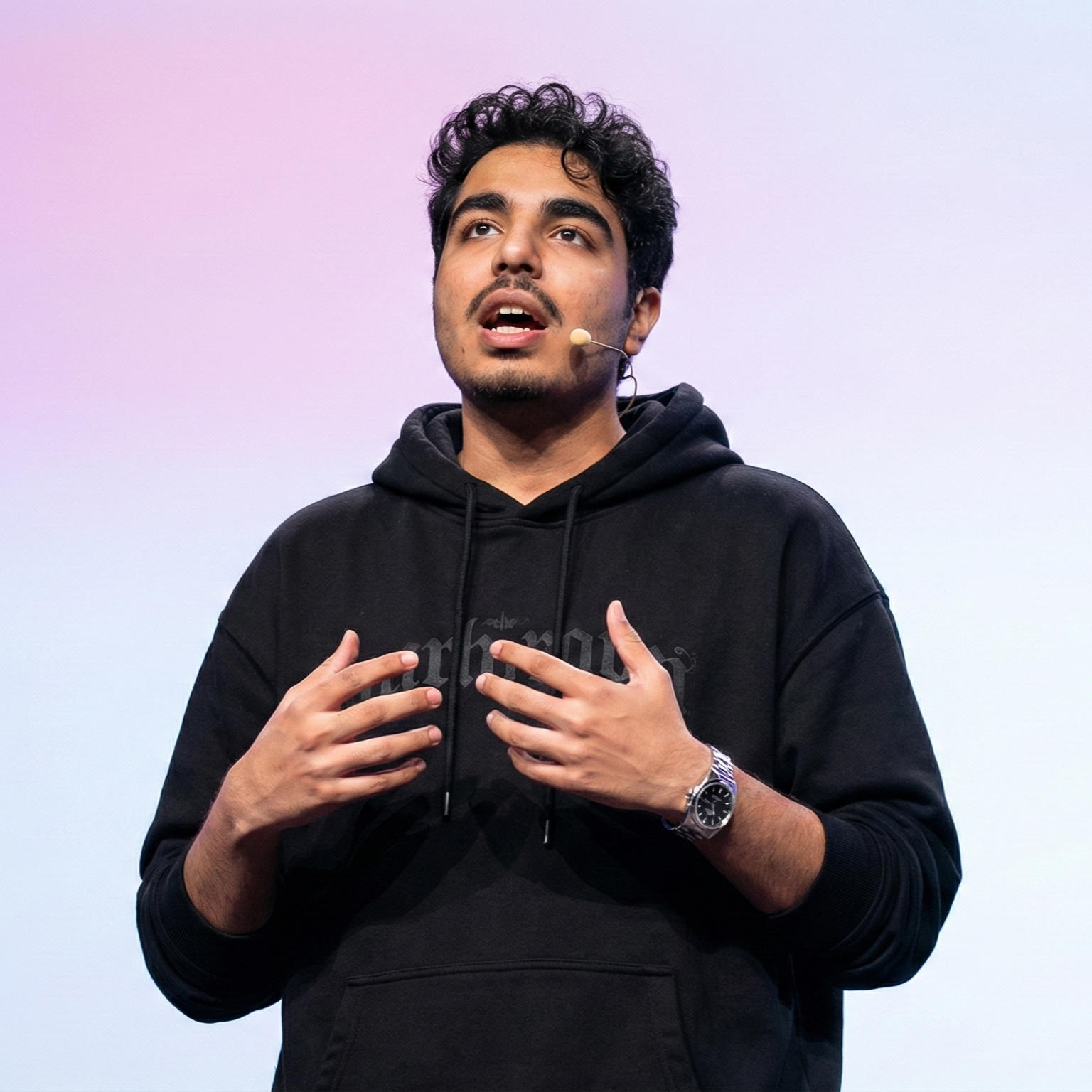
Abhishek co-founded Scriptivox and built its early optimization and scalability layer — the part that turns a working transcription tool into one that holds up under real load. Today he leads growth and marketing at Scriptivox. He writes about transcription accuracy, multi-language coverage, and what it takes to build an AI transcription product that stays fast and reliable as it scales.