Your project manager just sent you the recording from this morning's quarterly review. Thirty-seven attendees, two hours of discussion, and action items scattered throughout. The transcript is due by Friday, and it needs to meet WCAG accessibility standards for your organization's compliance requirements.
Creating accessible meeting minutes isn't just about typing up what was said. It requires structured formatting, proper heading hierarchies, and export settings that preserve accessibility features across different document formats.
What Are Accessible Meeting Minutes?
Accessible meeting minutes are structured documents that follow Web Content Accessibility Guidelines (WCAG) formatting standards. They use proper heading structures, alternative text for images, and semantic formatting that screen readers can navigate efficiently.
Convert Audio to Text First
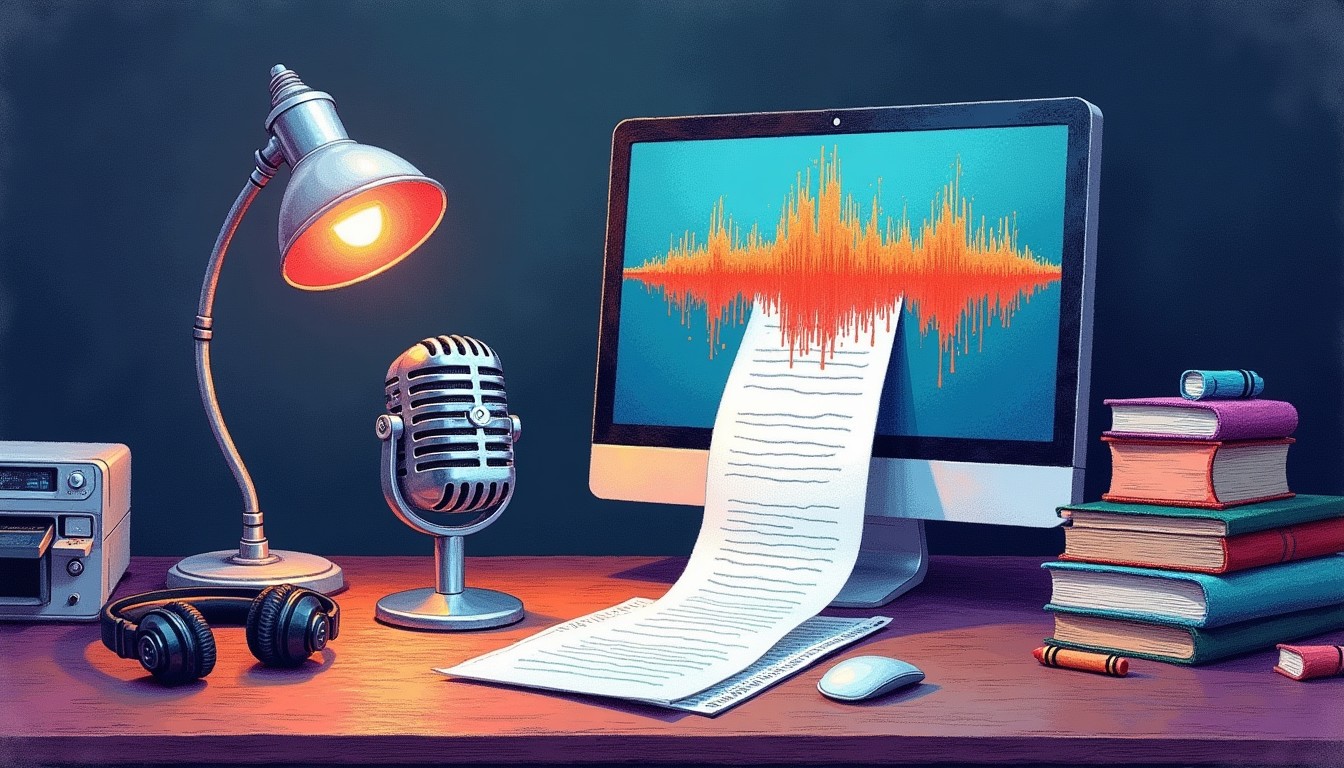
Before formatting, you need an accurate transcript. Manual transcription of a two-hour meeting takes 8-12 hours. Scriptivox cuts this to minutes with speaker identification and word-level timestamps.
I upload the meeting recording, select "auto-detect" for language recognition, and enable speaker diarization for up to 10 participants. Within four minutes, I have a timestamped transcript that identifies each speaker by number. The word-level timestamps let me jump to specific discussion points when reviewing for accuracy.
The AI transcript chat feature helps extract action items automatically. I ask "What decisions were made?" or "List all action items with owners" and get structured summaries without re-reading the entire transcript.
Structure Content with Proper Headings
Accessible minutes follow a clear heading hierarchy that screen readers can navigate:
Meeting Information (H3)
- Date and time
- Attendees (present and absent)
- Meeting purpose/agenda
Discussion Topics (H3)
Each major agenda item gets its own H3 heading. Use H4 for sub-topics within discussions.
Decisions and Action Items (H3)
Group all decisions together, then list action items with assigned owners and deadlines.
Never skip heading levels. Don't jump from H2 to H4 without an H3 in between. Screen readers use heading structure for navigation, and broken hierarchies confuse assistive technology.
Format Tables for Screen Reader Access
Action item tables need proper headers and structure:
- Use table headers: Mark the first row as a header row in Word (Table Tools > Design > Header Row)
- Add table captions: Right-click table > Table Properties > Alt Text. Write a brief description like "Action items from Q4 planning meeting"
- Keep tables simple: Avoid merged cells or complex layouts that confuse screen readers
For attendance tracking, use a two-column table with "Name" and "Status" headers rather than listing names in paragraph format.
Apply Consistent Text Formatting
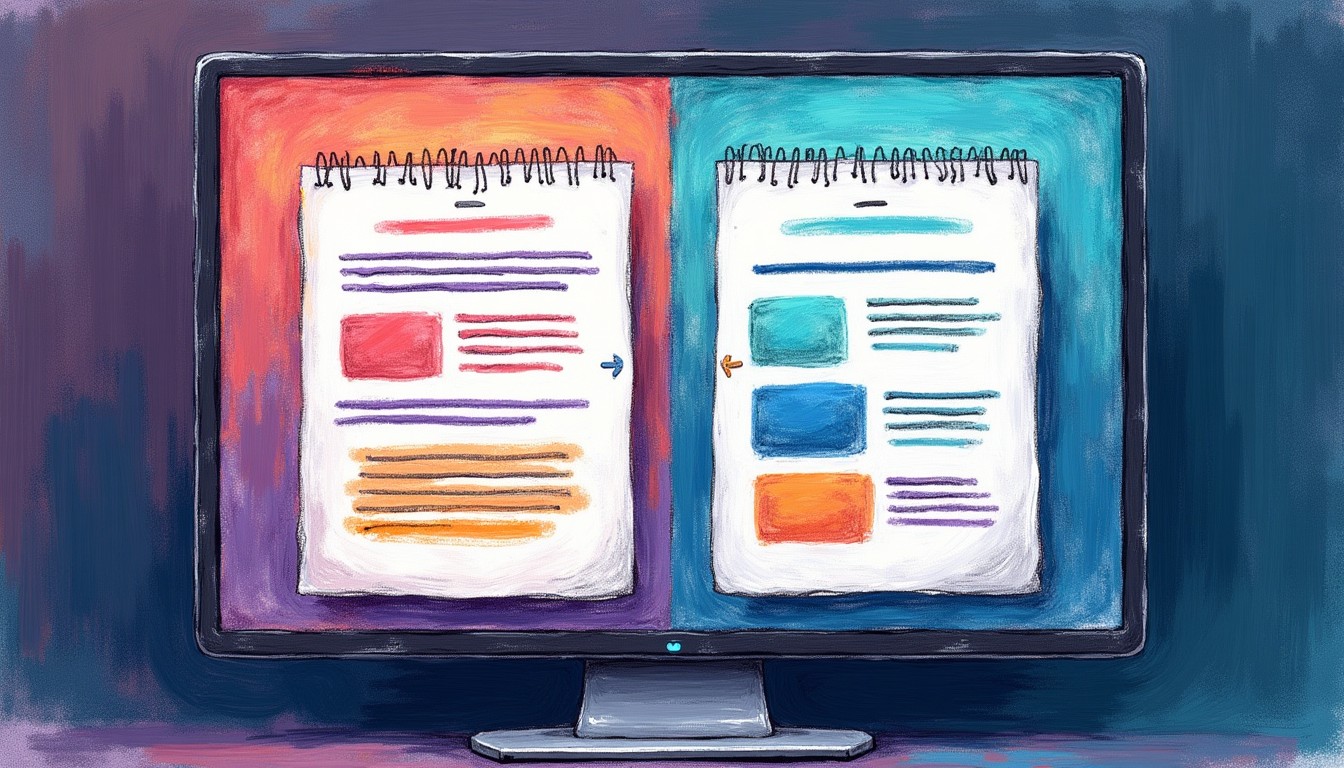
Accessible formatting uses Word's built-in styles instead of manual formatting:
Use Styles Panel
Apply "Heading 1," "Heading 2," etc. from the Styles panel instead of just making text bold and large. This creates semantic meaning that assistive technology recognizes.
Format Speaker Names
Use "Strong" style (not just bold) for speaker identification. This signals importance to screen readers without relying on visual formatting alone.
Highlight Key Information
Use "Emphasis" style for action items and deadlines rather than italics or underline. The semantic meaning carries through to accessible formats.
Export to Accessible PDF

Word's default PDF export strips accessibility features. Here's the proper workflow:
- File > Export > Create PDF/XPS
- Click "Options" button
- Check "Document structure tags for accessibility"
- Select "PDF/A-1a" format (preserves structure better than standard PDF)
- Include alt text for images if your minutes contain charts or diagrams
The resulting PDF maintains heading structure, reading order, and alternative text that screen readers can access.
Test Accessibility Before Distribution
Word includes a built-in accessibility checker:
- File > Info > Check for Issues > Check Accessibility
- Review flagged items in the Accessibility pane
- Fix missing alt text for any images or charts
- Verify heading order follows logical sequence
Common issues include missing table headers, unclear link text ("click here" instead of descriptive text), and color-only formatting that doesn't work for colorblind readers.
For PDF testing, open the exported file in Adobe Reader and try navigating with Tab keys only. If you can't reach all content using keyboard navigation, screen reader users will have the same problem.
Handle Multiple Speakers and Complex Discussions
Long meetings with overlapping speakers need clear attribution:
Speaker Identification
Rename generic "Speaker 1, Speaker 2" labels to actual names after transcription. Scriptivox lets you edit speaker names in the transcript interface before export.
Cross-References
When someone references "what Sarah mentioned earlier," include timestamps or section references: "As discussed in the Budget Review section (14:32), Sarah noted..."
Sidebar Conversations
Indicate when discussions happen simultaneously: "[Parallel discussion about timeline while John continues presentation]"
This context helps readers follow complex meeting dynamics without losing track of main discussions.
Common Formatting Mistakes to Avoid
I've seen teams spend hours fixing accessibility issues that proper initial formatting would prevent:
Don't rely on visual formatting alone. Using red text for urgent action items works for sighted readers but means nothing to screen readers. Use "Strong" style plus descriptive text: "URGENT: Complete budget review by March 15."
Avoid manual line breaks. Pressing Enter twice to create space breaks screen reader flow. Use paragraph spacing in Word's formatting options instead.
Don't use tables for layout. Reserve tables for actual tabular data. Use headings and lists to structure content instead of invisible table cells.
Skip generic link text. "Click here to view the presentation" tells screen readers nothing. Use "View Q4 budget presentation (PDF, 2.3MB)" instead.
You can test this workflow free at Scriptivox. Upload a sample meeting recording and experiment with speaker identification and AI-powered action item extraction before committing to longer transcription projects.
Frequently Asked Questions
About the author

Abhishek co-founded Scriptivox and built its early optimization and scalability layer — the part that turns a working transcription tool into one that holds up under real load. Today he leads growth and marketing at Scriptivox. He writes about transcription accuracy, multi-language coverage, and what it takes to build an AI transcription product that stays fast and reliable as it scales.