You're rushing between meetings when inspiration strikes. That perfect project idea needs capturing before it vanishes, but typing on your phone while walking isn't happening. This is exactly why Apple built Voice Memos into every iPhone.
What started as a simple recording app has evolved into something more powerful. The latest iOS updates include automatic transcription, iCloud sync across all your Apple devices, and editing tools that let you polish recordings without starting over. Yet most people barely scratch the surface of what's possible.
I've been using Voice Memos for everything from capturing interview notes to recording music ideas. The real breakthrough isn't just the recording—it's what happens next when you need those audio files turned into searchable, actionable text.
What Is the Voice Memo App iPhone?
Voice Memos is Apple's built-in audio recording app that captures, edits, and syncs recordings across all your Apple devices through iCloud. Starting with iOS 18, it includes automatic speech-to-text transcription that converts your recordings into searchable text without requiring internet connectivity.
The voice memo app iPhone users rely on handles everything from quick voice notes to professional interview recordings. Unlike third-party alternatives, it's already installed, requires no setup, and integrates seamlessly with Apple's ecosystem.
Essential Voice Memo Features Most People Miss
The app includes six core capabilities that go far beyond basic iPhone voice recording:
Smart Recording Quality: Voice Memos automatically adjusts between compressed and lossless audio based on your available storage. For quick notes, it uses efficient compression. For music or important interviews, it captures lossless quality that rivals dedicated recording equipment.
Replace, Don't Re-record: The Replace function lets you fix specific sections without starting over. Found a mistake at the 3-minute mark of a 20-minute recording? Just select that section, tap Replace, and re-record only what needs fixing.
Cross-Device Sync: Every recording automatically appears on your iPhone, iPad, Mac, and Apple Watch through iCloud. Start recording on your phone, pause it, then continue on your Mac when you sit down.
Built-in Transcription: iOS 18 added automatic transcription that works offline. Your spoken words become searchable text within seconds, no internet required. This changes how you can reference old recordings.
Playback Controls: Skip silence automatically removes dead air from your recordings. Speed controls let you listen at 0.5x for detailed note-taking or 2x for quick review. These aren't just convenience features—they transform how efficiently you process recorded content.
Audio Enhancement: The Enhance Recording feature reduces background noise and echo using computational audio processing. It's not perfect, but it dramatically improves recordings made in noisy environments.
These features work together in ways that aren't immediately obvious. Recording a lecture with Skip Silence enabled, then using the transcript to jump to specific topics, turns your iPhone into a research tool.
How to Record Voice Memos (The Right Way)
Most people tap record and hope for the best. Here's how to get professional iPhone audio recording results:
- Open Voice Memos from your home screen or Utilities folder
- Position your iPhone 6-8 inches from your mouth for optimal clarity
- Tap the red Record button to start
- Use the waveform view by tapping the audio visualization to monitor levels in real-time
- Pause instead of stopping if you need breaks—this keeps everything in one file
- Tap the blue checkmark when finished to save automatically
Pro tip: For longer recordings, enable Low Power Mode in your iPhone settings. This prevents the screen from dimming and interrupting your session.
The key difference between amateur and professional recordings isn't equipment—it's technique. Speaking at a consistent distance from the microphone matters more than having the latest iPhone model.
Voice Memo Editing: Beyond Basic Trim
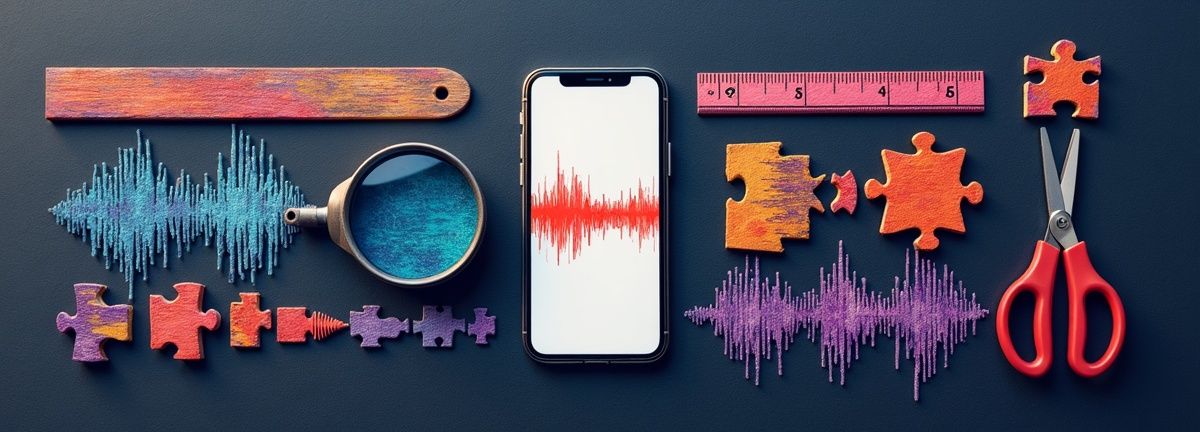
Voice memo editing includes tools that rival dedicated audio apps:
Precision Trimming: Tap the three dots menu, select "Edit Recording," then "Trim." You get two sets of yellow handles—coarse adjustment on top, fine-tuning on bottom. This dual-slider system lets you trim with second-level precision.
Section Replacement: Instead of trimming, you can replace entire sections. Drag the timeline to your target area, tap "Replace," and record new audio that seamlessly integrates with the original.
Audio Enhancement: Under the three-dot menu, select "Options" to access "Enhance Recording." This uses machine learning to reduce background noise and echo. It's particularly effective for recordings made in cars or offices.
Duplicate Before Editing: Always duplicate important recordings before making changes. Tap the three dots, select "Duplicate," then edit the copy. This preserves your original in case the edits don't work as expected.
I learned this lesson when I enhanced a 45-minute interview recording, only to realize the noise reduction had also removed some crucial quiet responses. Having the original saved me from starting over.
Built-in Voice Memos Transcription vs. Professional Solutions
Apple's transcription works well for casual use, but it has limitations that become apparent with professional needs:
Voice Memos Transcription:
- Works offline
- Supports 10 languages
- No speaker identification
- Basic accuracy for clear speech
- No timestamp precision
- Free with iOS 18+
To access transcripts, open any recording, tap the three dots menu, and select "View Transcript." The text appears instantly, and you can copy sections for use elsewhere.
When You Need More: If you're recording interviews, meetings, or content that requires professional accuracy, the built-in transcription hits walls quickly. No speaker labels means you can't tell who said what in multi-person recordings. No precise timestamps makes it hard to reference specific moments.
For professional work, I use Scriptivox to handle recordings that need enhanced accuracy. The workflow is seamless: record in Voice Memos for convenience, then upload for speaker identification, word-level timestamps, and support for 100 languages.
Last week, I recorded a client interview in Voice Memos during a coffee shop meeting. The built-in transcription couldn't separate my voice from the client's responses. After uploading to Scriptivox, I had a clean transcript with Speaker 1 and Speaker 2 labels that I could rename to our actual names. The word-level timestamps meant I could jump to exact quotes during my analysis.
Voice Recording Apps Comparison: iPhone Options in 2026
No single app handles every recording scenario perfectly. Here's when to use what:
Apple Voice Memos excels at spontaneous recording with zero setup. The app opens instantly, syncs across devices, and includes basic editing. Best for voice notes, quick ideas, and casual interviews where you need reliable capture more than advanced features.
Otter.ai targets business meetings with real-time transcription and collaboration features. It struggles with background noise and requires a monthly subscription for full features. Better for scheduled meetings than spontaneous recording.
Rev Voice Recorder offers human transcription services at premium pricing. The accuracy is excellent, but you're paying per file and waiting for turnaround. Best for crucial recordings where perfect accuracy matters more than speed or cost.
Just Press Record costs $4.99 once and includes Apple Watch recording with transcription. Good middle ground for frequent recorders who want more features than Voice Memos without ongoing subscriptions.
Dragon Anywhere provides professional dictation with custom vocabularies but requires a subscription and works best for direct dictation rather than recording conversations.
The pattern I've found: Voice Memos for capture, then specialized tools for processing. This keeps your workflow simple while giving you professional options when needed.
Advanced Voice Memo Workflows
Meeting Notes System: Record in Voice Memos, then use the transcript to create structured notes. I copy key quotes into my note-taking app, using the search function to find specific topics later.
Content Creation: Record rough ideas while walking or driving, then use transcripts as starting points for articles or presentations. The transcript becomes your outline.
Language Learning: Record yourself speaking in target languages, then review the transcripts to spot patterns in your mistakes. The playback speed controls let you compare your pronunciation to native speakers.
Interview Backup: Even when using dedicated recording equipment, Voice Memos runs as backup. Multiple recordings have saved me when primary equipment failed.
Research Workflow: For academic or professional research, I record interviews in Voice Memos, then process them through Scriptivox to get word-level timestamps. This creates searchable transcripts where I can jump to exact quotes with timestamp precision.
These workflows work because Voice Memos handles the unreliable part—capturing audio reliably—while other tools handle the specialized processing.
Troubleshooting Common Voice Memo Problems
Poor Audio Quality: Check your iPhone's microphone ports for debris. Lint or dust significantly impacts recording quality. Use compressed air to clean them gently. According to Apple's official support documentation, this is one of the most common causes of recording issues.
Sync Issues: If recordings aren't appearing on other devices, verify iCloud is enabled in Settings > [Your Name] > iCloud > Voice Memos. Force-close the app and reopen it to trigger sync.
Storage Warnings: Long recordings consume significant space. Check Settings > General > iPhone Storage > Voice Memos to see usage. Move important recordings to cloud storage before deleting.
Transcription Not Working: The transcription feature requires iOS 18 or later and doesn't work in all regions. If unavailable, you'll need third-party solutions.
App Missing: Voice Memos occasionally gets buried in folders or accidentally deleted. Search "Voice Memos" in Spotlight, or reinstall from the App Store if needed.
Privacy and Security Considerations
When using any voice memo app iPhone, consider privacy implications. Voice Memos stores recordings locally and syncs through iCloud with encryption in transit and at rest. Apple states they don't use your recordings to improve their services.
For sensitive content like legal interviews or confidential meetings, review your organization's data policies. Some industries require specific privacy controls that basic consumer apps may not provide.
Third-party transcription services process audio on their servers, so understand their privacy policies before uploading sensitive content. Scriptivox processes audio securely and doesn't use recordings for AI training, making it suitable for professional use.
Voice Recording Apps Comparison: iPhone Options in 2026
| App | Best For | Key Features | Pricing | Limitations |
|---|---|---|---|---|
| Apple Voice Memos | Spontaneous recording | Zero setup, cross-device sync, basic editing | Free | Basic transcription only |
| Otter.ai | Business meetings | Real-time transcription, collaboration | Monthly subscription | Struggles with background noise |
| Rev Voice Recorder | Crucial recordings | Human transcription services | Premium per file | Expensive, slow turnaround |
| Just Press Record | Frequent recorders | Apple Watch recording, transcription | $4.99 once | Limited advanced features |
| Dragon Anywhere | Professional dictation | Custom vocabularies | Subscription required | Best for dictation not conversations |
Frequently Asked Questions
About the author

Abhishek co-founded Scriptivox and built its early optimization and scalability layer — the part that turns a working transcription tool into one that holds up under real load. Today he leads growth and marketing at Scriptivox. He writes about transcription accuracy, multi-language coverage, and what it takes to build an AI transcription product that stays fast and reliable as it scales.